Step‑by‑Step: Logging a Refuel
Trip Logbook tracks your mileage in real time, so the app always knows which vehicle you’re currently driving. When it’s time to record a refuel, the process is intentionally streamlined:
- Tap the +Action Button on the Trips(Home) or Trip In Progress screen.
- Select Add Fuel.
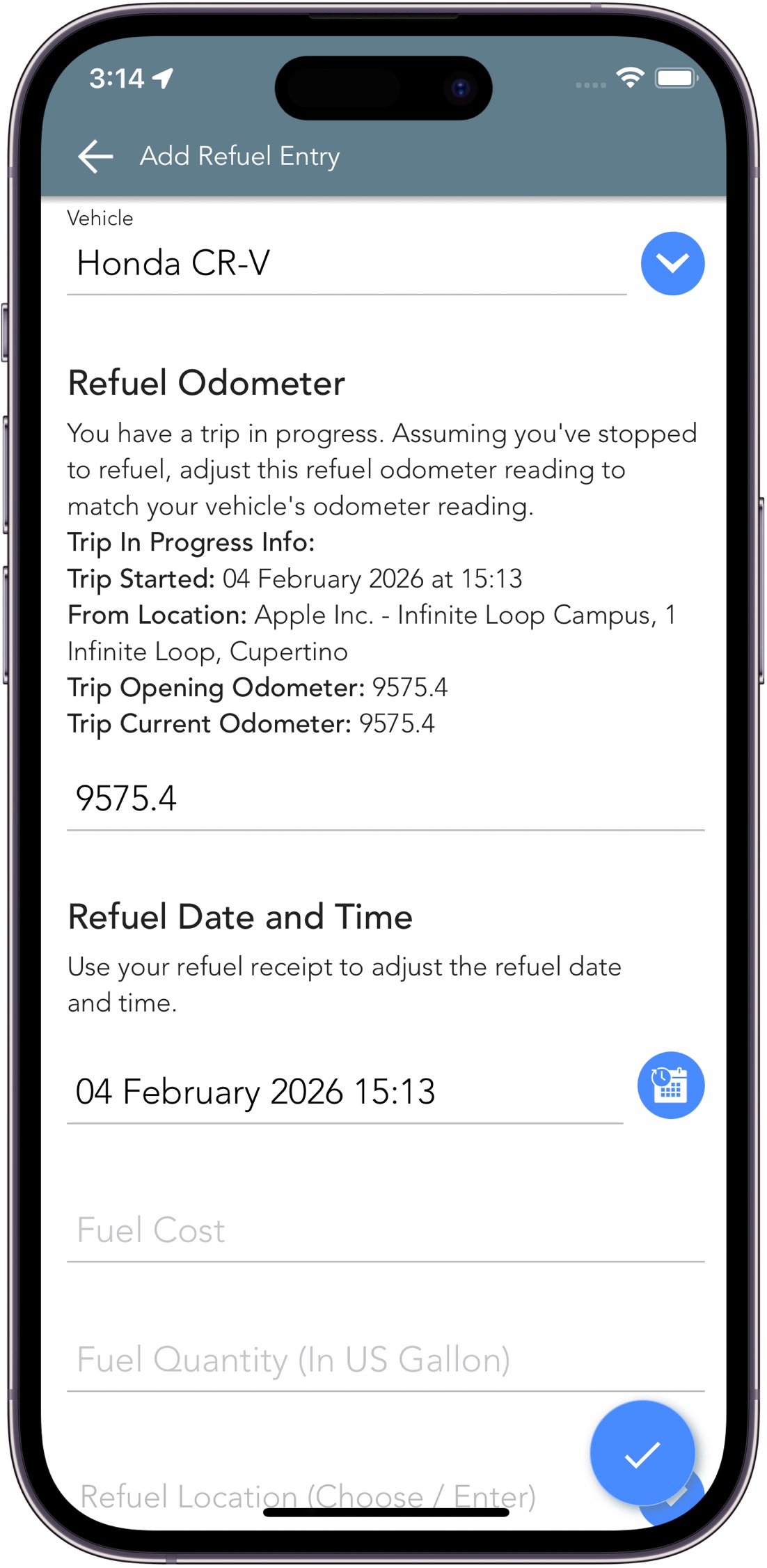
- The Add Refuel Entry screen loads with your Vehicle, Refuel Odometer and Refuel Date and Time already filled in based on your live trip data.
- Enter the Fuel Cost.
- Enter the Fuel Quantity.
- Choose the Refuel Location from your list of Places.
- Save the entry
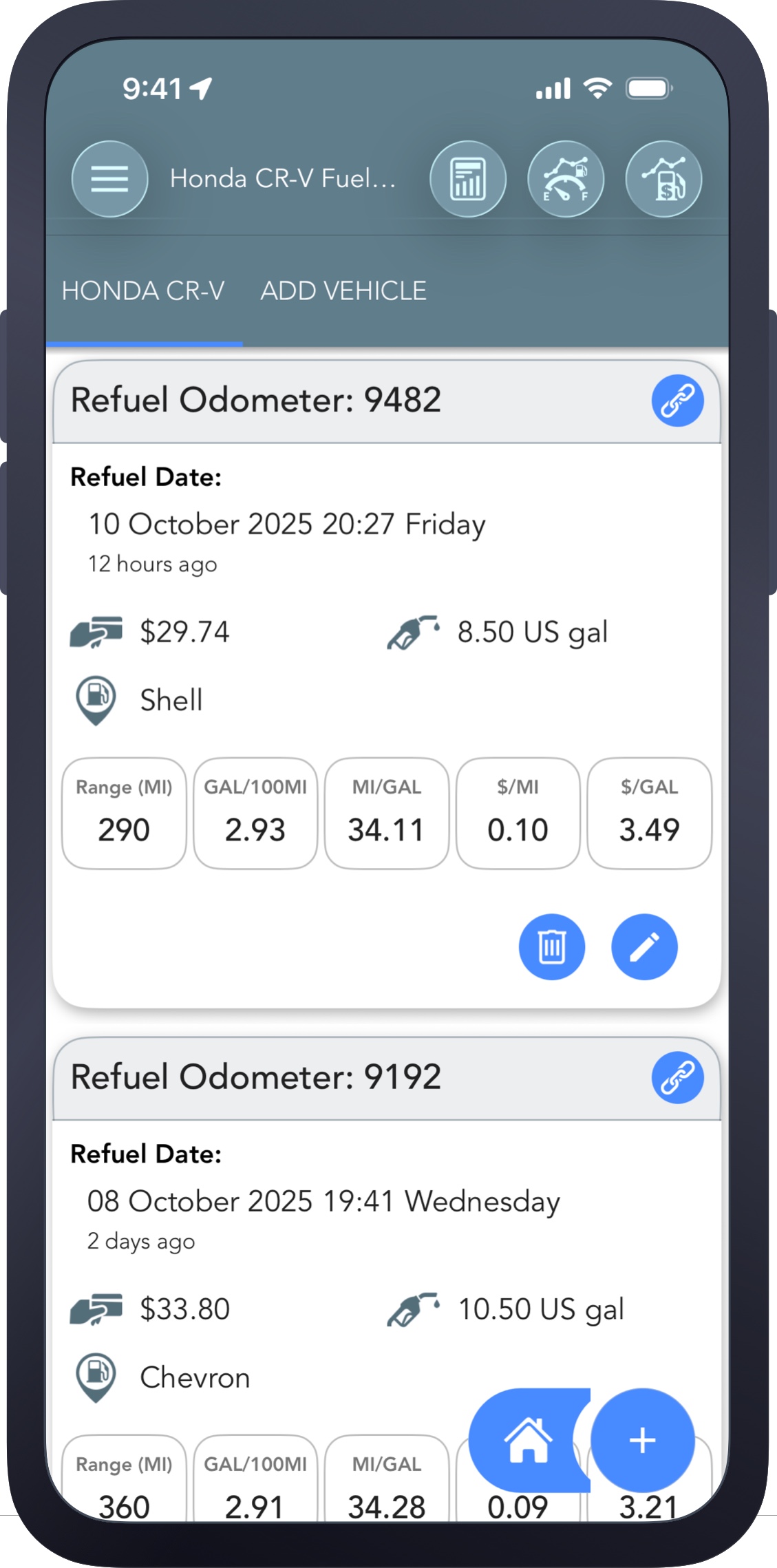
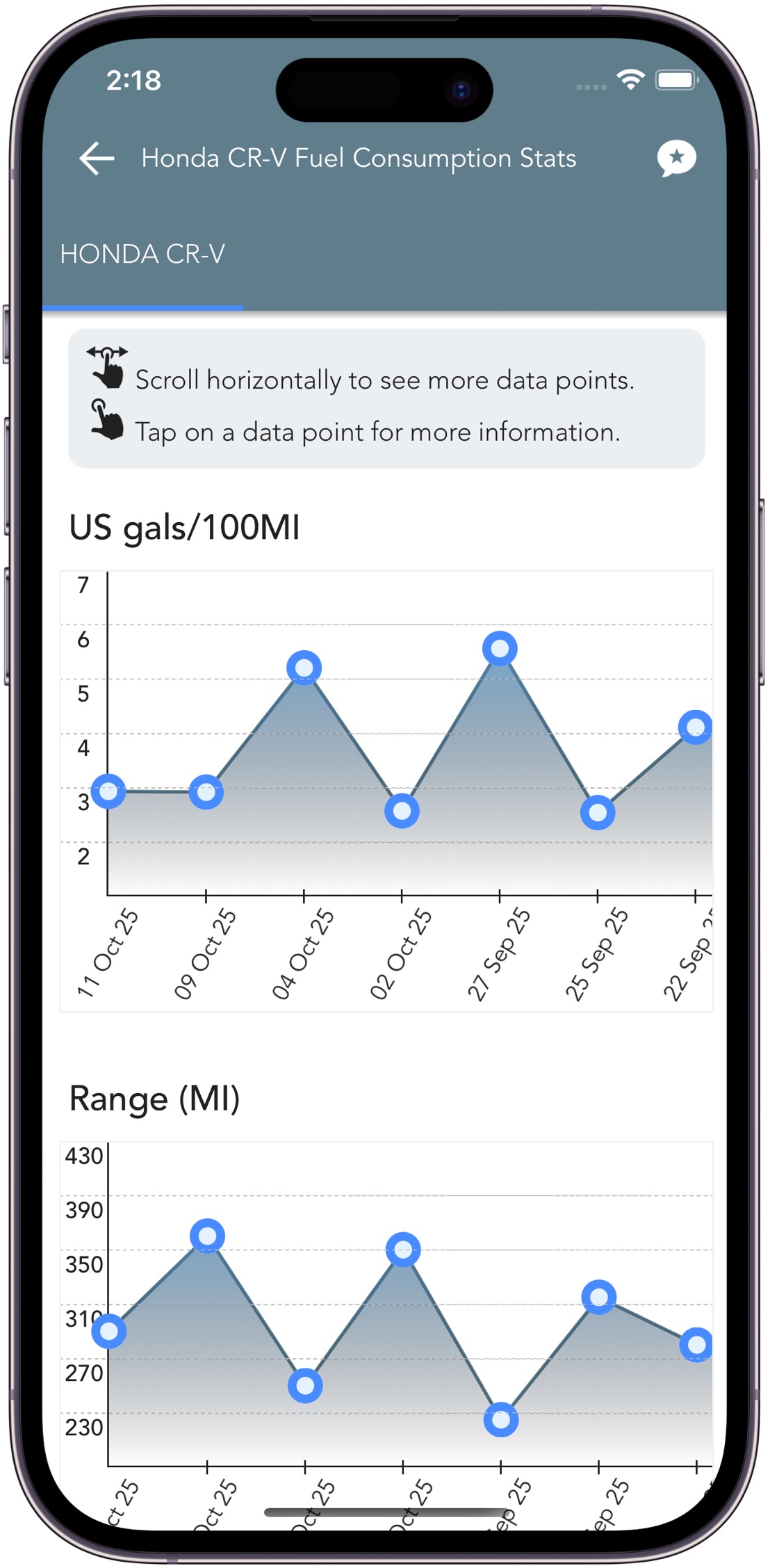
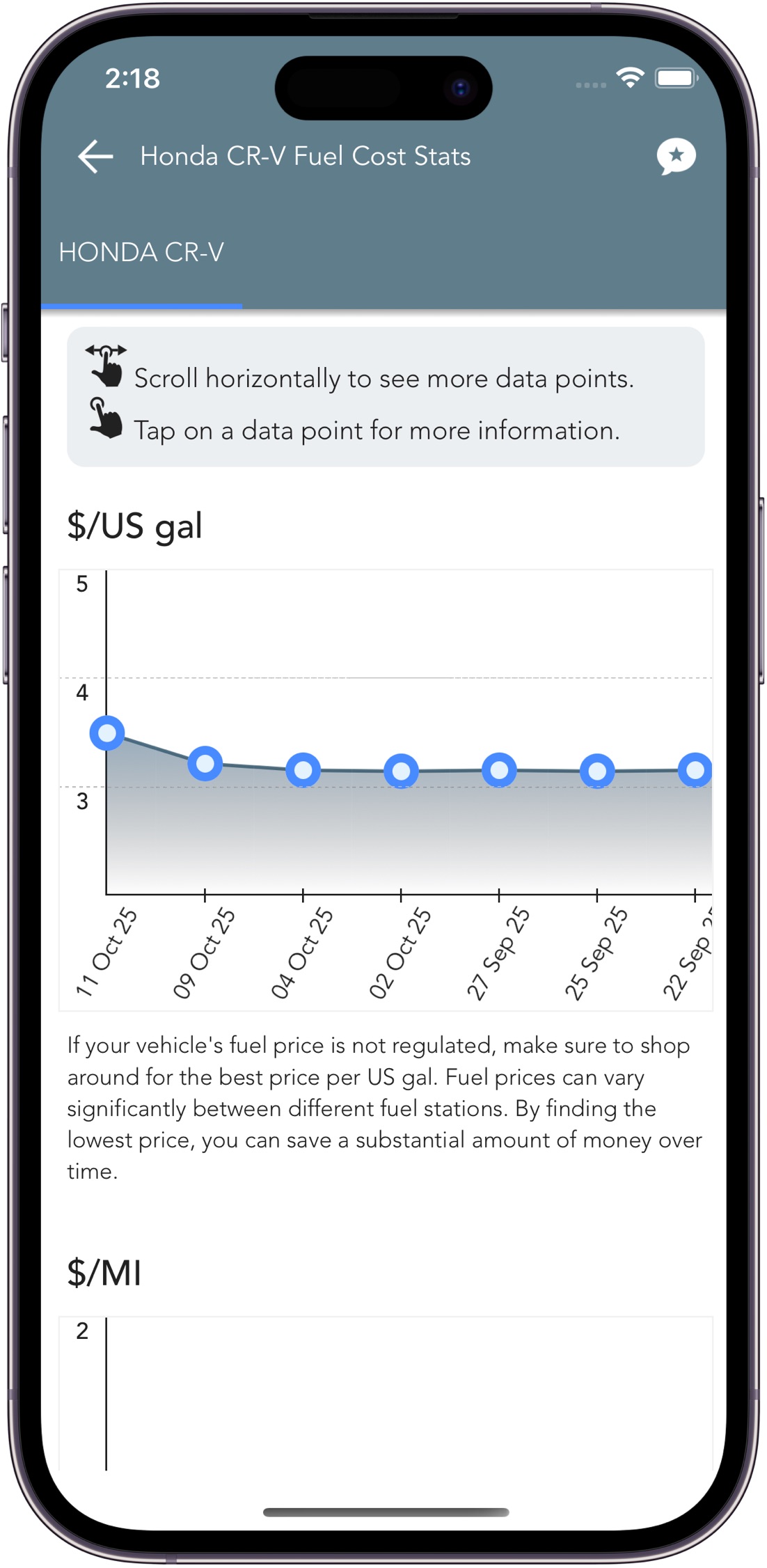
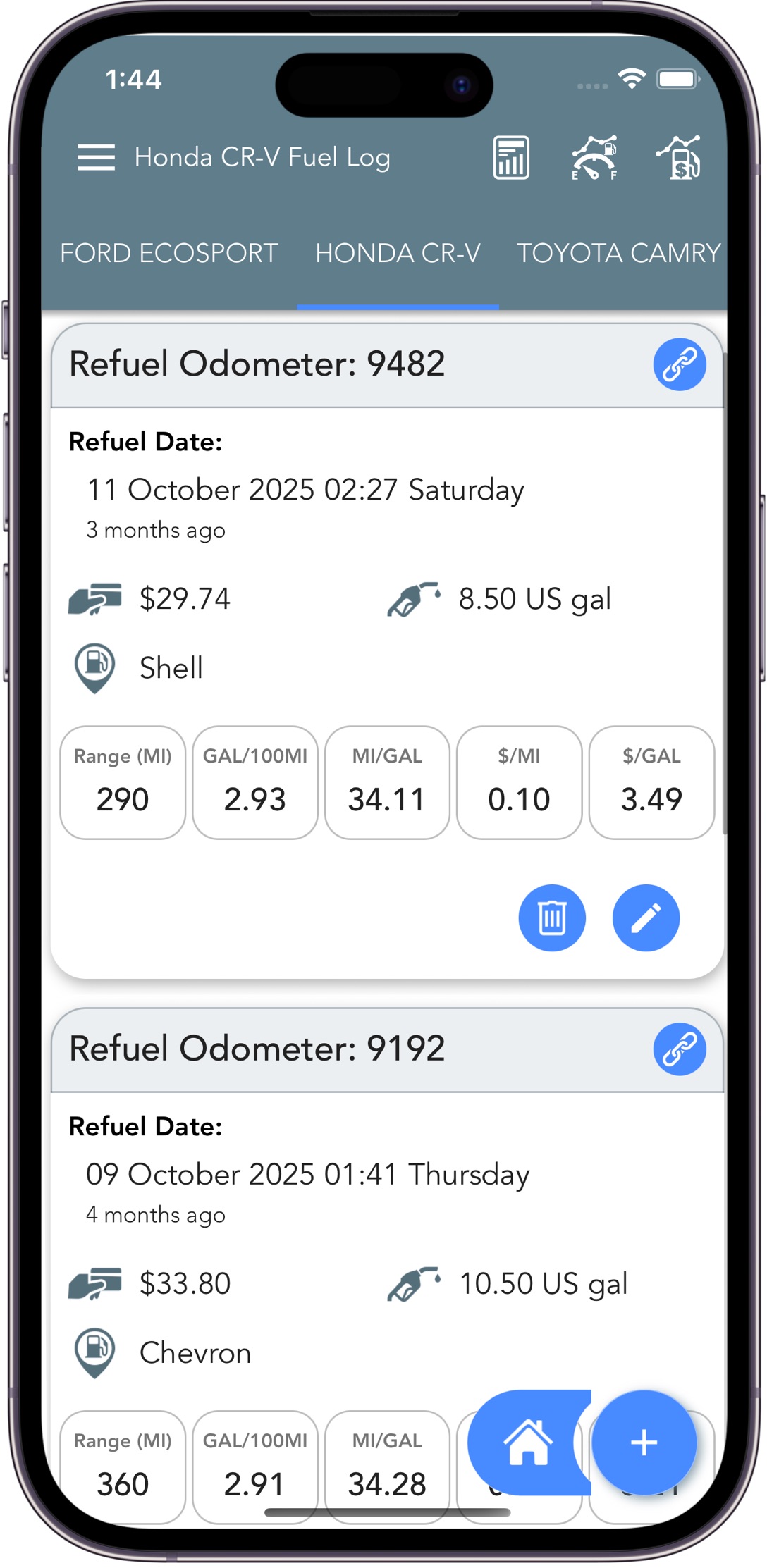
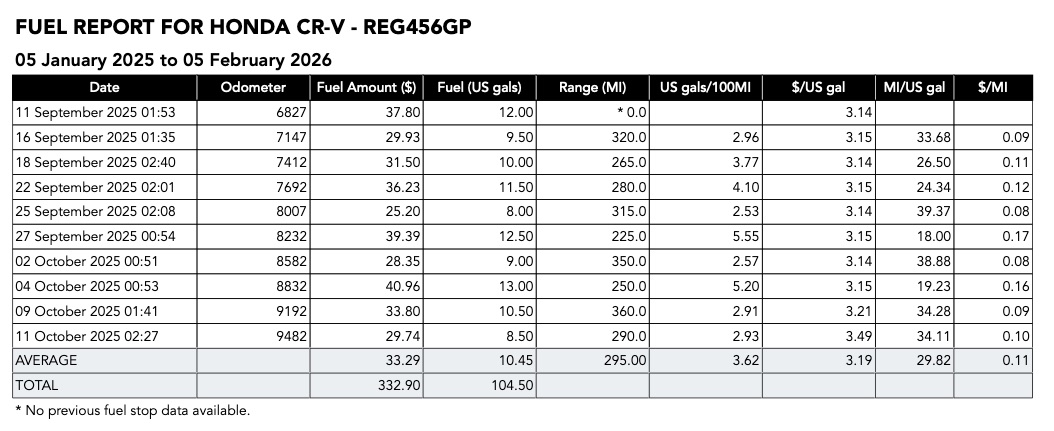
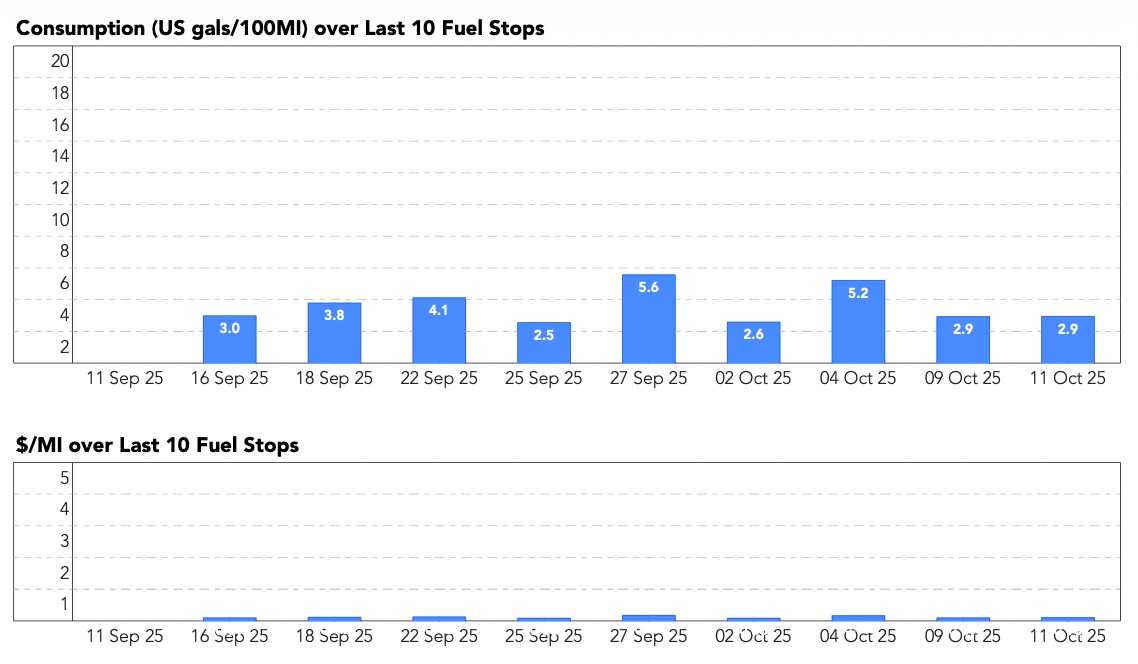
- Fuel consumption and cost metrics are automatically calculated between refuels
From start to finish, adding a refuel typically takes less than a minute.
Full Control Over Your Fuel Records
You can add, edit, or delete refuel entries at any time. Trip Logbook also validates your data as you go, offering guidance if the odometer reading or selected date and time don’t align with your trip history. This helps keep your fuel log accurate and audit‑ready.