Trip Logbook - The Mileage Tracker App with CarPlay support

Trip Logbook is a CarPlay‑compatible mileage tracker app that lets you start, monitor, and end trips directly on your car’s screen — without handling your iPhone while driving.

Use the Trip Logbook CarPlay app to keep mileage accurate, hands‑free, and aligned with your odometer, so every business mile is recorded when it matters.

★★★★★ "Brilliant app! Worth the spend!...Reports worked great! Auto tracking worked perfectly!..." – Lanzo

How Trip Logbook works with CarPlay

Trip Logbook is designed so you can manage mileage tracking from the CarPlay interface, while keeping odometer readings aligned using Siri on your iPhone.

1. Start mileage tracking on CarPlay

Open the Trip Logbook app on your vehicle’s CarPlay console.

On the Start a Trip screen, tap your vehicle to begin mileage tracking.

From that point, Trip Logbook tracks your trip while you drive — no need to handle your iPhone.
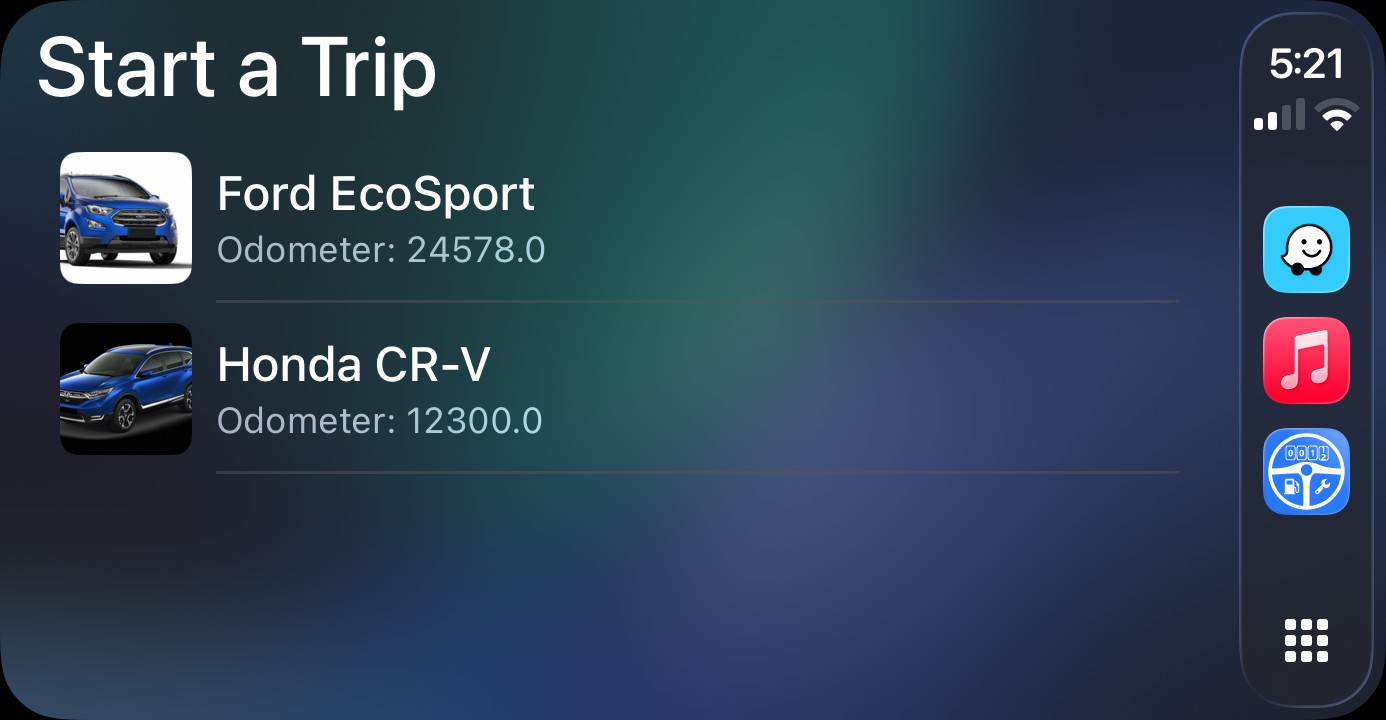
Trip Logbook Mileage Tracker CarPlay App - Start trip screen

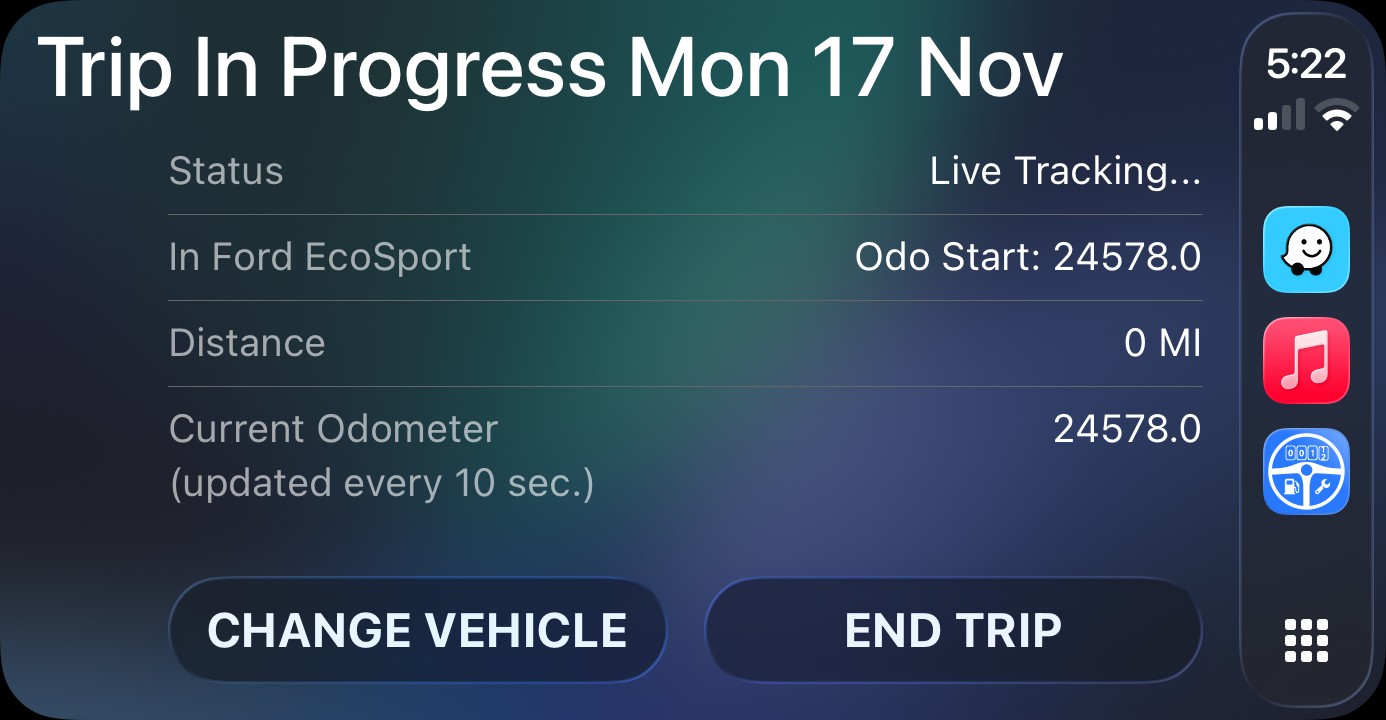
2. Monitor trips from the Trip In Progress screen

On the Trip In Progress screen, you can see key details at a glance:

  • Starting odometer and location
  • Current trip status and distance traveled
  • Current odometer reading
  • Active vehicle

When you’re done, tap END TRIP to log the trip.


In another car? No problem. Tap CHANGE VEHICLE to instantly re-assign trip tracking to the correct car.

Trip Logbook Mileage Tracker CarPlay App - Trip in Progress screen showing mileage tracking details

Keep your odometer aligned using Siri voice command

While Trip Logbook mileage tracking with CarPlay is perfect for starting, monitoring and ending trips, odometer alignment happens via Siri voice command on your iPhone — so you can keep your mileage history anchored to real odometer readings.

Hands‑free odometer updates

Activate the Update Odometer Siri voice command in the Trip Logbook main menu on your iPhone. This is a one‑time setup.

After that, you can simply say "Hey Siri, Update ODO" to align the odometer reading in Trip Logbook with your vehicle’s current odometer.

On arrival, verify and align

When you arrive, do a quick check of your vehicle’s odometer. If the value needs adjustment, use the Siri command to bring Trip Logbook back into sync.

This keeps your mileage log accurate over time — essential for audits and tax claims.

Automate CarPlay mileage tracking

Trip Logbook supports CarPlay‑based mileage tracking automations so you can minimize manual steps and still keep a complete mileage history.

CarPlay Automations

Use CarPlay events to control when trips start and end:

  • Start mileage tracking when your iPhone connects to CarPlay
  • End mileage tracking when your iPhone disconnects from CarPlay

This reduces the chance of forgetting to start or end a trip when you get in or out of the car.

Zero Touch Logging

With Trip Logbook’s Zero Touch Logging, ALL trip details can be captured instantly and accurately when your automations are configured.

CarPlay Automations and Zero Touch Logging means fewer missing trips, fewer gaps, and more complete records when it’s time to claim your mileage.

Driving with your phone vs driving with CarPlay and Siri

You can try to manage mileage tracking by handling your phone at the start and end of every trip, but it’s easy to forget and it’s not ideal for safety. CarPlay and Siri keep mileage tracking close to where your attention already is — the dashboard and the road.

Managing trips on your phone

  • Easy to forget to start or end trips
  • Temptation to handle your phone while driving
  • Harder to see current trip status while on the road
  • More steps to keep odometer readings aligned

Trip Logbook with CarPlay and Siri

  • Start trips from the CarPlay Start a Trip screen
  • See distance, odometer, and vehicle at a glance
  • End trips directly on your CarPlay dashboard
  • Use Siri – “Hey Siri, Update ODO” – for odometer alignment

The ultimate mileage tracking experience

For the ultimate milage tracking experience:

  • Use the Trip Logbook Mileage Tracker Carplay App.
  • Use a vent mount with your phone.
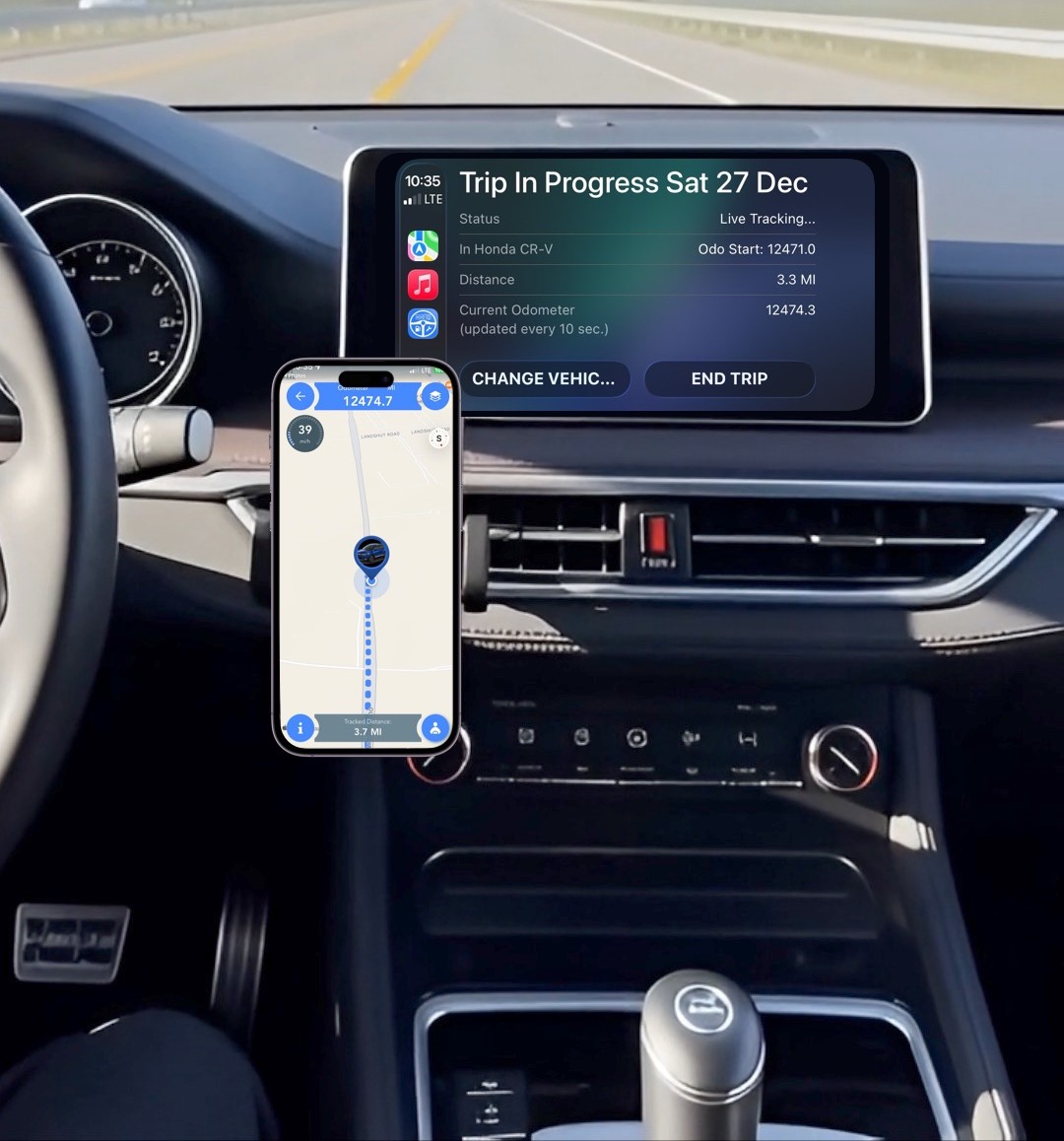
  • Use the Trip in Progress map to monitor trip tracking in real time.
  • Use CarPlay Automations.
  • Use Trip Logbook's Siri Voice commands.
  • Keep your phone connected to your vehicle charging port to preserve phone battery.
Trip Logbook Mileage Tracker App - Trip In Progress Map with CarPlay App

Try Trip Logbook with CarPlay

Trip Logbook is available in the US Apple App Store. You can start capturing compliant, audit‑ready mileage today.

We offer a full‑access 30‑day free trial, so you can use CarPlay, Siri, and automations with your real‑world driving before you decide.

Tap or click below to download:

Download on the App Store

CarPlay mileage tracking FAQ

Answers to common questions about using Trip Logbook as a mileage tracker app with CarPlay and Siri.

Does Trip Logbook work with CarPlay?

Yes. Trip Logbook is fully CarPlay‑compatible. You can start, monitor, and end mileage tracking directly on your car’s CarPlay screen using the Trip Logbook app.

Can I start mileage tracking using CarPlay?

Yes. On the Start a Trip screen in CarPlay, tap your vehicle to begin tracking without touching your iPhone.

Can I monitor my trip progress on CarPlay?

Yes. The Trip In Progress screen on CarPlay displays your starting odometer, distance traveled, current odometer reading, trip status, and active vehicle.

Can I end a trip using CarPlay?

Yes. Simply tap END TRIP on the CarPlay Trip In Progress screen to log your mileage accurately.

Does Trip Logbook support Siri voice commands?

Yes. You can align your odometer hands‑free using the Siri command "Hey Siri, Update ODO" after activating the Update Odometer shortcut in the app.

Do I need to handle my iPhone while driving?

No. Trip Logbook is designed for safe, hands‑free mileage tracking using CarPlay and Siri. You can keep your eyes on the road and your hands on the steering wheel.

Does CarPlay mileage tracking work for multiple vehicles?

Yes. If you’re in a different vehicle, tap CHANGE VEHICLE on the CarPlay screen to switch the active trip to the correct vehicle instantly.